Punching cable Part 1 – Patch panel, cables, switches

Introduction

The other weekend I got the opportunity to practice my cable punching skills and learn a little more about the wiring behind networks and phone systems. In this post I’ll briefly give a quick overview of a project I had the chance to work on and part 2 will look at how this can translate into the home environment.

Part 2 will also look at how these home applications can be used with the intelligent heating system I am building.

Punching cable

My wife’s family business is currently going through the process of building a new office, and as a result of this there is a substantial amount of phone and network cabling that is required in order to support the staff. Along with one of the employees I spent a weekend hooking up the cables the electricians had run from the network and phone sockets to the patch boards in the phone room.

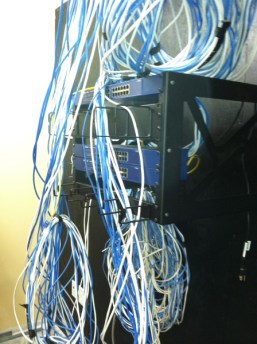
Cables!

Cables!

As you can see in the photo above there was a substantial amount of work to be done.

In total we had a trunk cable with 50 pair leading from the PBX to a patch board, 48 cables running from phone sockets (these are the white cables) to the same patch board as the trunk and another 48 Cat-5 cables (the blue) which will be used for ethernet.

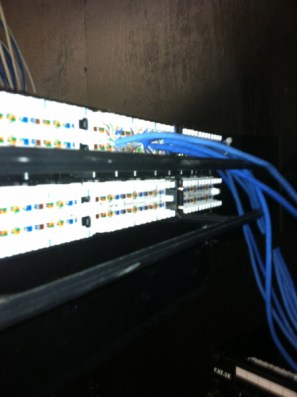
Our first job was to take the loose end of the Cat-5 and punch this into the patch panel.

Patch board

Patch board

Patch panels are relatively cheap and can be picked up at Home Depot for example. For most home projects a 12 port patch panel should do the trick, and only set you back around $30

In order to attach the cable you will need a punch down cable installation tool.

TRIPPLITE TrippLite 110/66 Punch Down Cable Installation Kit

Dell – TRIPPLITE TrippLite 110/66 Punch Down Cable Installation Kit

These can be picked up online, or at most good stores that stock electronic/electrical products.

For this project we were following the B standard (T568B) of Cat-5 termination. There are two standards you can following, T568A and T568B, Wikipedia provides a more in-depth look at the differences.

The process of punching the cable itself for the B standard is relatively straight forward.

You simply match up the cable pair by color with the schematic on the back of the panel and then punch the cable into place using the tool shown above.

Once the cable was punched into place, the next task was to test our work to ensure the cable was sending a signal from the wall socket to the patch panel.

Testing the cable

Testing the cable

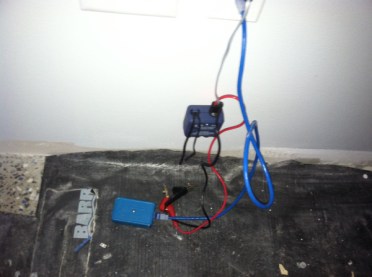
The photo above shows both the phone line toner and the network line tester. Both of these devices work in a similar manner. You hook one end up to the wall socket, and then in the case of the network tester, plug it into the patch board, and in the case of the toner, hold the sensor tip over the phone line on the patch board.

When you hit the test button on the network tester you should see all the light go green to indicate that the connection is good. With the toner, when you hold the sensor tip over the connected phone line on the patch board you’ll hear a sound that indicates you have a signal.

You can see some example of these tool here.

We repeated the above process of punching and testing until the 48 phone lines, trunk cable and 48 Cat-5 cables were complete.

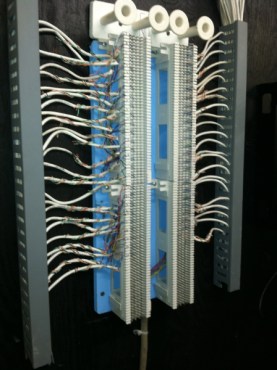
You can see the finished work below on the phone patch board with the phone lines and the Trunk hooked up:

Phone patch board

Phone patch board

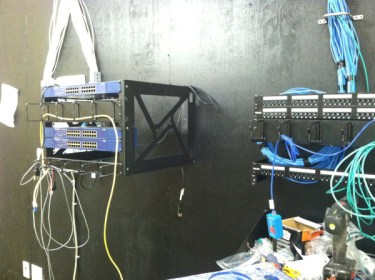
And here is the completed job, ready for the switches to be attached to the network patch board.

Punching cable complete

Punching cable complete

Conclusion

The above process has given me a good overview of how to set up cables and get them in punched in ready to use. As with most things in electronics, practice makes perfect. Once you get the hang of punching cable it is relatively easy. It will also give you the ability to cable Cat-5 in your own home taking some of the load of your Wi-Fi connection if you have hardware that needs a good solid, strong connection.

In Part 2 we will look at the home application of installing a network switch and implementing a patchboard.

Quick updates

Gertboards

For those of you not familiar with it, the Gertboard is a microcontroller kit for the Raspberry Pi that comes with a variety of add ons (motors, sensors etc.)

It hasn’t shipped in the US yet, however I have pre-ordered it and will be doing a review once the equipment arrives.

In the meantime you can read more about it at the Element14 site.

Potential book

As a result of this blog there is the potential for a book in the works, more on this when/if it develops further.

Punching cable

I recently got a crash course in punching cable and wiring up Cat 5 and phone cable. There is a post in the works on this, where I will explain the relevance for home automation.

MakerBot – Fixing jammed print material

Introduction

This is going to be a quick post on an area of MakerBot maintenance.

In an earlier post I mentioned our printing co-operative was planning on having a training session. Due to illness though half of the co-op was out that day so we postponed the training session. As a result of this I decided to change out one of the spools of printing material and in the process encountered a problem that seems to be fairly common amongst MakerBot owners – jammed print material.

Changing the print material

Following the regular instructions for removing the print material (this is available on the print menu for the Replicator), I removed the spool. I then loaded the new spool of material and ran through the instructions for re-loading the plastic.

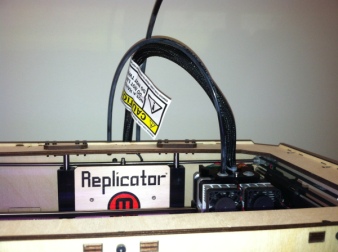
Changing print material

Changing print material

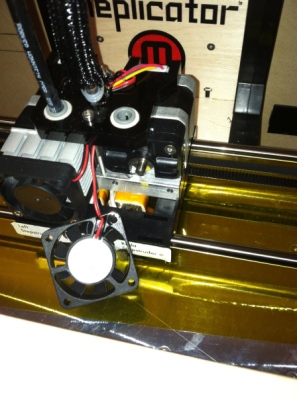
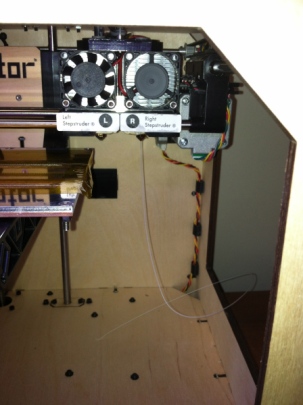
At this point I noticed a vibrating noise, and notice that the material wasn’t being fed into the stepstruder correctly. Pulling the plastic out revealed marks on it that suggested that the motor that pulls the print material through was grabbing the plastic, however something was preventing it from being fed through for heating.

Taking the allen keys provided with the MakerBot I took apart the right stepstruder – you can read and watch instructions on how to do this here.

Removed bolts

Removed bolts

Fan removed

Fan removed

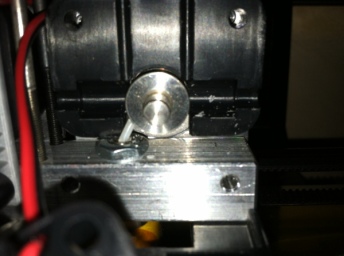
Once removed I was able to see that the white plastic had snapped off and jammed when I had unloaded it, you can see the jammed plastic in the photo below to the left of the Delrin plunger:

Jammed plastic

Jammed plastic

Using a pair of needle nosed pliers, I was able to remove enough of the plastic, so that when I reloaded the spool it would be fed in correctly.

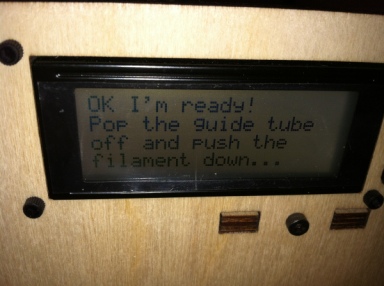
After re-assembling the stepstruder, I reloaded the original white spool and ran through the instructions on the MakerBot menu again:

MakerBot Menu

MakerBot Menu

Thankfully this worked and we can see the print material once again being run through the stepstruder.

Printing once again

Printing once again

Conclusion

When unloading the print material be careful that it doesn’t snap off and jam in the stepstruder. If you noticed after changing the spool you have a problem with the new spool being fed through, then try the steps above to check if you have a jam, and fix it.

Temperature Database Prototyping – Hardware, Postgresql and HTSQL

Introduction

In this post I am going to detail prototyping a test Postgresql database server, installing Postgres support on the Raspberry PI (for HTSQL) and then serving up the contents of the DB server via HTSQL over http.

The purpose of this task is to familiarise ourselves with each of the components in the system before we design how the actual database server will be setup and built out.

Throw away test machine

I like to keep a couple of old Windows machine on hand for building out quick test servers that I can use to prototype a system and then wipe out ready for my next project. I find this saves a lot of cost of going out and buying hardware, only to discover your original plan has changed for some technical/design reason and then having to purchase more equipment.

For this task I am using an old Pentium 4 machine running XP with about 60 Gigs of HDD space. I’ve hooked it up with a monitor and keyboard and plugged it into my router via a network cable. At this point it is worth grabbing the IP address of the machine you have just plugged in. This should be available via your routers DHCP table.

Consult your router documentation on how to access this information if you are not familiar with the process. Note: I checked my DHCP table after installing Ubuntu – since this is the only Ubuntu machine on my network currently, it appeared as “ubuntu” in the table

Now my first step is going to be to set it up as a dual-boot machine and load Ubuntu desktop edition onto it.

Ubuntu setup

Depending on the type of machine you use for prototyping the instructions below will obviously be different, for those of you with an old XP machine at hand, the steps below should work for you.

  1. Downloaded Ubuntu’s latest version windows installed here.
  2. Run the installer and follow the on-screen instructions – Note: select your OS type as Ubuntu.
  3. Once your machine has rebooted into Windows follow the next steps:
  4.  Right click My computer and select Properties
  5. Select the Advanced tab from the pop-up box
  6. Under Start-up and Recovery select Settings
  7. Select Time to display list of operating systems checkbox – change the drop-down to 10 seconds
  8. Select the Default operating system drop-down and change this to “Ubuntu”
  9. Save your changes and re-boot your machine into Ubuntu.

Setting up Postgresql

Our Ubuntu machine is going to act as a database server, a Postgresql one in fact. For those of you not familiar with Postresql, it is a powerful, free, open source relational database and has been around for 15+ years. You can read more about it here.

Your first step will be to install the necessary software on Ubuntu.

Follow the instructions below to set up Postgresql

1. Open Terminal in Ubuntu and type the following command:

sudo apt-get install postgresql postgresql-client postgresql-contrib

2. The above command once it has completed running will have installed all the necessary components to start a Postgresql server on your Ubuntu machine.

3. Navigate via the command line to the following directory:

/etc/postgresql/9.1/main/

Note: depending on the version of Postgres you have installed the directory 9.1 may be different. As of August 26, 2012 9.1 is the latest version installed via the apt-get command above.

4. You will now need to edit the postgresql.conf in order to tell Postgresql to listen on the IP address assigned to your new dev machine via DHCP. Using vi type:

sudo vi postgresql.conf

Once you have the file open, edit the following line (you may have to un-comment it, and it will probably be set to localhost):

listen_addresses = 'ip address from dhcp table'

Save the file and exit.

5. We can now login to the “template1” DB that comes setup by default with pgsql

sudo -u postgres psql template1

From here for example we can change the password of the postgres account:

ALTER USER postgres with encrypted password 'my_new_password';

6. We now want to create a test database to serve via HTSQL, to do this we type the following:

CREATE DATABASE temptest;

7. With our new database created we can add a dummy table and a dummy row of data:

CREATE TABLE temperature (code char(5) );
INSERT INTO temperature (code) VALUES ('12345');

Feel free to add some more test rows.

8. Now we can quit postgresql and edit the configuration in order to allow remote access to the DB. In order to do this, you will need to edit the pg_hba.conf file

Change the configuration to include the following (you can use Vi):

local   all         postgres                          md5
host   all         postgres              samenet            md5

Then save and exit

9. We now need to restart our postgresql instance to pick up the changes, this can be done by:

sudo /etc/init.d/postgresql restart


Once the instance has restarted, we are now ready to make some configuration changes on the Raspberry PI.

Raspberry PI configuration

In order to connect our HTSQL server to our newly built Postgresql DB we need to install some extra packages on the Raspberry PI. First of all you will need ssh into the RPI.

Once logged in, follow the steps below:

1. Install python developer packages and the HTSQL postgres package as follows:

sudo apt-get install libpq-dev python-dev
pip install HTSQL-PGSQL

Once these have successfully been installed you should now see:

Successfully installed HTSQL-PGSQL psycopg2

Now we can connect to the postgresql instance.

2. We can test our connection to the testtemp database we created as follows:

htsql-ctl shell -p pgsql://postgres@host:port/database

The host above should be replaced with the IP address of the Ubuntu server you setup with postgresql installed on it. Also remember to include the port number after the IP address, by default postgresql runs on 5432. The final option is the database we created – temptest.

Once you can log in via the HTSQL shell to the DB instances then you are good to go with actually running a server.

3. Exit out of the HTSQL shell and then create a HTSQL server as follows:

htsql-ctl server 'engine://username:password@host:port/database'

engine should be replaced with pgsql, username and password are those that you set on the DB server, host and port are the DB servers IP address and postgresql port (as mentioned above this will probably be 5432) and finally database is our temptest database.

Once you have started the server you will see:

Starting an HTSQL server on raspberrypi:8080 over temptest

4. We can now check that everything is running as expected. Load up your web browser and in the URL bar type:  http://<ip of raspberry pi>:8080

If everything is working as expected you will see

Welcome to HTSQL!

Please enter a query in the address bar.

5. You can then hit the test table we created as follows:

http://<ip of raspberry pi>:8080/temperature

And see some test data (note I have added a few extra rows to my temperature table of random test data)

temperature
code
1 12345
2 1245
3 56789

6. And that’s it, you now have HTSQL running on the Raspberry PI, pointing to a database server.

Conclusion

The above demonstrates the process of setting up a database server and using HTSQL on the Raspberry PI to communicate with it.  However this is only the beginning of what is required in order to build a system that can record our thermostat temperature data.

Using a prototype is useful for the purposes of ensuring we are building a modular system, where each component can be swapped out as necessary. Now we have demonstrated that we can plug a database into the system, we can concentrate on sourcing the right hardware that will replace the prototype.

Of course whilst our Raspberry PI now runs HTSQL, there is still a lot of work to be done on that end of things. We need to configure the RPI so that it is secure and also build out our controller software – which will use the data stored in the Postgres DB to tune our heating system.

The next steps then are going to be to complete the setup of the Raspberry PI and use our prototype DB server to test this configuration against. Once this is complete we will then concentrate on designing a relational database for the heating data, and building out the server hardware.
Installing HTSQL on RPI

Introduction

As I have mentioned in earlier posts I am planning on using HTSQL as part of my heating system. It will primarily provide me with a way to query data stored from the controller and thermostats over HTTP.

Eventually it will be pointing to a PostgreSQL DB which will act as my area for data storage.

Below are instructions on how to install HTSQL on your Raspberry PI.

Installation instructions

Note: The instructions presented are for installing HTSQL on a RPI running Debian squeeze. If you are looking for the Mac instructions they are located here. For other flavours of Linux available on the RPI the instructions should work, I make no promises though!

As always, you can check http://htsql.org/ for up-to-date information on operating systems supported and instructions.

Anyway on with the installation process:

The Raspberry PI runs on an ARM based architecture. On last checking the htsql website, there is no support for this via apt-get.

You can check the architecture of your chipset (which of course will be ARM if you are following the steps for your RPI) as follows:

apt-config dump

You will see in the returned information:

APT::Architecture "armel"

If you attempt to follow the standard apt-get procedure as presented on the htsql website for Debian, you will run into the following error message:

E: Unable to locate package htsql

This is because there is currently no armel distro.

So in order to install HTSQL, you will need to install via source.

Install pip

In order to run pip (a python package installer) you will need to add it to your RPI.

Run the following command :

sudo apt-get install python-pip

Once this is complete you can then run:

pip install HTSQL

Once this is complete you can now type:

htsql-ctl version

You should now see:

HTSQL 2.3.1 (or whatever the latest version is you downloaded).

HTSQL is now ready to go!

Conclusion

Out of the box HTSQL works with sqlite, if you want to run it against other databases you can follow the instructions here.

Follow up posts to this will detail setting up a PostgreSQL DB server and then connecting to it via HTSQL.

Raspberry PI – Network access

Introduction

One of the benefits of having a machine like the RPI is that you can set it up on your home network and access it without having to worry about a keyboard, mouse or monitor.

Combined with the RPIs small size, and the ability to place it in a custom case with a wall mount, these features are what make it one of the most exciting tools for home embedded/smart systems.

The steps below are an introduction on getting your RPI to boot up with ssh access, and allow you to connect to it from another machine on your home network.

SSH

So what is ssh? In brief ssh (secure shell) is a method that allows us to log into other machines over the network, most commonly through a command line tool (for those of you with a Mac you can do this via the Terminal). Once logged in, depending on our permissions we can then perform actions on the machine we are connected to.

For a deeper more complex technical evaluation of ssh you can read the wiki article here.

For the purposes of configuring our RPI (and later using it as a controller) we are going to be setting up ssh access so we can work on the machine remotely.

In my specific case, this is born from the fact that my router is nowhere near my TV set so trying to configure the RPI with a monitor, but without network access is going to be impossible in some cases i.e. installing HTSQL.

Steps to set up 

Fist of all connect your RPI up to its power supply, monitor and keyboard. Then log in.

Raspberry PI login

Raspberry PI login

At this point you may want to set the date of your RPI if you haven’t done so already.

By default the keyboard is set up to be UK format, so the @ is actually the ”

To set the date:

sudo date –set “23 APR 2012 16:01”

Next you will need to set the RPI to start ssh when it boots. To do this follow the next steps:

  1. cd /boot/
  2. sudo cp bootenable_ssh.rc boot.rc

The above copies bootenable_ssh.rc and creates a second version called boot.rc. The boot.rc version is then loaded when you start your RPI up.

Now follow the next steps:

  1. cd /etc/network
  2. vi interfaces

By default vim isn’t installed on the RPI, so if you haven’t taken the step to install it, you’ll need to use vi to edit the interfaces file.

You’ll need to edit the settings in the interfaces file as follows:

  1. Add eth0 to this line: insert eth0 so : auto lo eth0
  2. Change iface eth0 inet dhcp  to  iface th0 inet static
  3. Now add:
    address 192.168.0.202
    netmask 255.255.255.0
    gateway 192.168.0.200

Finally save the file  – press  : then type x and hit enter to save and exit
The above steps have now added configuration to tell the RPI to run on a static IP address on your local network.

Testing the above worked

You can now log out of your RPI and power it down.

Next, boot the PI back up with your network jack attached. Your PI should now boot with ssh enabled.

Raspberry PI hooked up

Raspberry PI hooked up

I plugged my PI directly into my Cisco E4200 router. I then logged into it via 192.168.1.1 in my web browser (type http://192.168.1.2 into the address bar) – note this may be different on your home network depending on how you have configured it.

If you have a Windows machine for example and your router is plugged into that, you can run:

ipconfig

Now look for Default Gateway, this will give you the IP address that the router should be running on.

Once your PI is powered up and booted (you should also see a yellow light, indicating you are on the network) you can shell (ssh) into your server.

Note:

The fixed IP address you assigned may not work. To test if it did try:

 ssh pi@192.168.0.200

If this does not work, log into your router and check the DHCP Client table. Most of the devices I run on my network have a client name e.g. kindle-xxxxxxxxxx.

You may now see a device appear in the list with no name. To confirm which device is your RPI, you can try disconnecting it, refreshing the DHCP client table, reconnecting it and then refreshing again. The new device added to the list is probably your RPI.

Next, take the new IP address from the table and shell into the machine (via Terminal, console, Cygwin or whatever you are using):

ssh pi@

This gave me the authenticity message which I accepted. I then entered the default password for the PI, and presto! I am now logged in.

Conclusion

So I need to investigate how to ensure the static IP is always picked up, I’ll blog a separate post on that for those of you having problems.

For the moment we now have an easy way to get access to the PI without a monitor and can go ahead and install whatever packages we need.

Quick update – number 2

With summer being here, things have been a little slower on the development/soldering front. However as we approach fall this will change.

Here is an update of what is happening.

3D printing co-operative

This evening the first meeting of our 3D printing co-operative will take place. Now we have ironed out the issues with the MakerBot, the rest of the co-operative is ready to start using it. I’ll be posting the occasional picture up here of any cool objects my colleagues make.

Instructional Videos

As part of the inauguration of the 3D printing co-op we will doing some training sessions on the Replicator. I will try to film some of the important aspects of this (changing material spools, changing the base plate heat etc.) and adding links to these on the blog.

Ordering Materials

I still have some outstanding components to order for my Thermostats, I’ll be sorting these out next week. Once I have them all, expect a post listing each piece, what it does and how it fits together as part of the overall system.

Raspberry PI remote access/ssh

Expect two separate posts, one on setting up the Raspberry PI to be accessed over your home network (so you don’t need a TV/Monitor) and the second on installing the latest version of HTSQL. (Update: these can be found here)

Raspberry PI case printing

Introduction

In my previous post I hd mentioned that having got the 3D printer ready to go again, I planned to print the case for my Raspberry PI. After viewing some of the cases on Thingiverse I located one that had been designed with four wall mounts.

In my initial attempt to export the image to the SD card, everything had seemed to work correctly, however the MakerBot was unable to view it. So during my lunch hour today I removed the file from the SD card and started over.

Exporting the case to SD card

My first step was to load the top portion of the case’s .stl file into ReplicatorG. Using the 3D rendering of the image I was able to align the case top so that it was positioned in the middle of the axis. Once this was complete I then exported the file to Gcode. Finally I edited the Gcode so the heat of the base plate would be 120 degrees F.

I then followed the steps above for the bottom portion of the case.

The images were now ready to export to SD format. Using the option on the menu I exported directly to my SD card, and also shortened the rather long names of the files in case this contributed to the MakerBot not being able to view them.

Ejecting the SD card I was now ready to give printing another try.

Printing the case

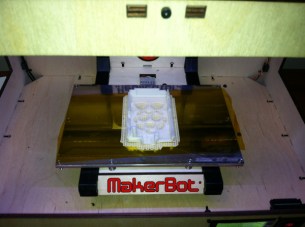
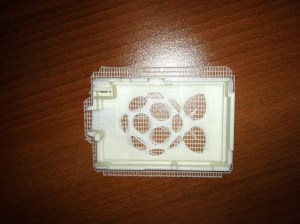
Loading the SD card into the MakerBot I could now view the files on the menu and so set the top to print. I left the printer to do its thing and checked back in on it a couple of hours later. As you can see in the picture below, the printing was successful:

Raspberry PI case

Raspberry PI case

Raspberry PI top

Raspberry PI top

Raspberry PI bottom section

Raspberry PI case

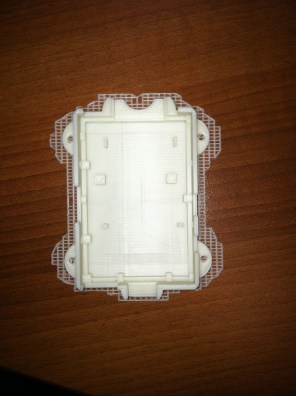
With the two pieces of the case complete my next job was to clean the lattice off the objects and try the Raspberry PI out to see if it fit.

Here you can see the case clipped together:

Completed case

Completed case

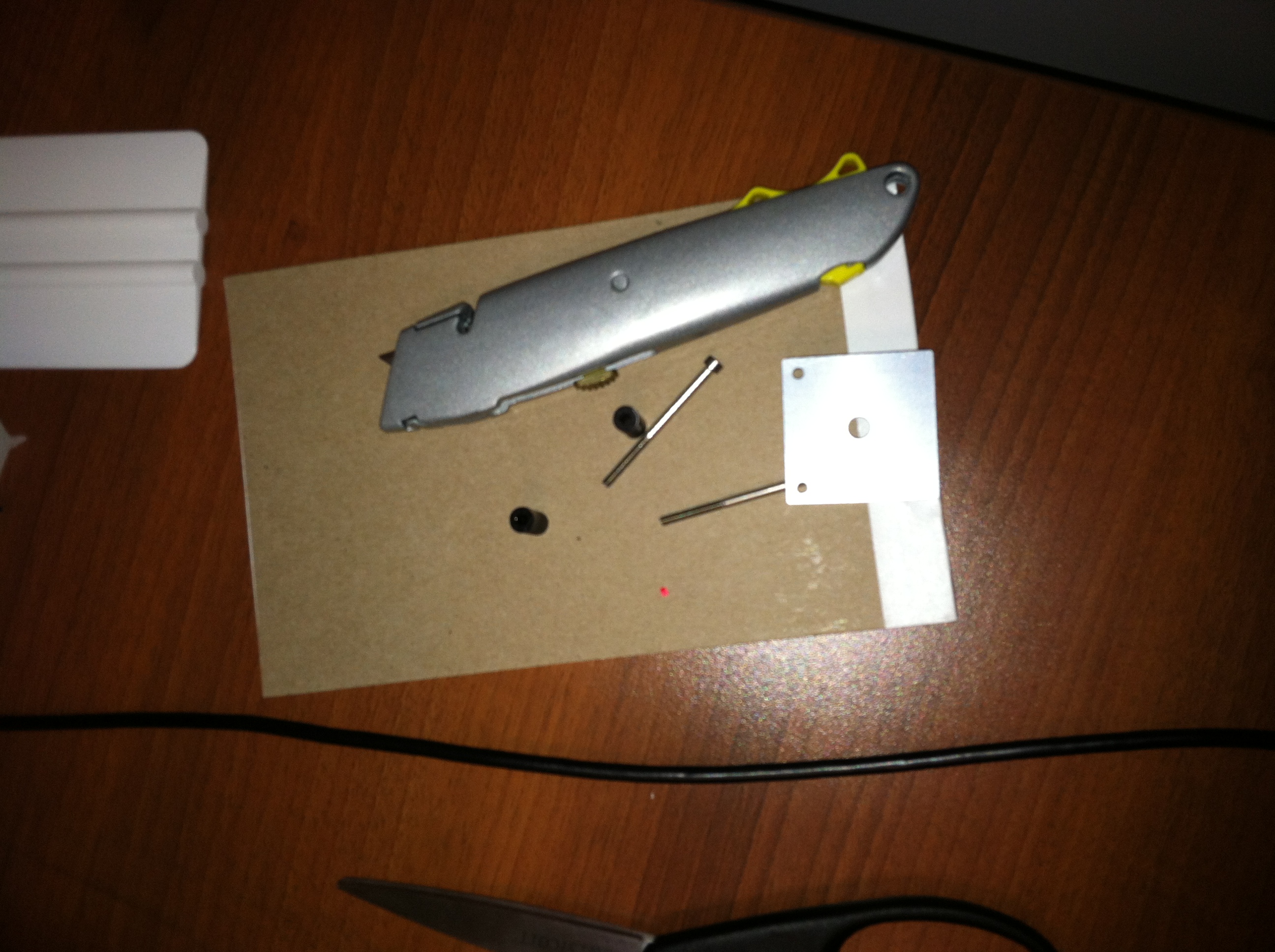
I would recommend for the next steps having some kind of tray to put the case on, an X-acto knife and some sand-paper or a tool to smooth off the plastic (the later being something I didn’t have at hand at home, so I’ll need a trip to Home Depot).

Most objects are printed onto a lattice base, so your first job will be to remove this.

As you can see below, the lattice that the objects are printed on comes off pretty easily, you can snap this off with your hand right after you take the object out of the MakerBot.

Lattice

Lattice

As a note: One thing I have noticed about the quality of the print – in general – is that the objects made on the MakerBot have a lot of rough portions that need to be cut or smoothed off. This takes a little while so with my RPI case I set some  time aside this evening to work on cleaning it up.

Here you can see the bottom portion of the RPI case:

Case bottom

Case bottom

Outside of the RPI case

Outside of the RPI case

Using an X-acto knife I gently removed the top layer on the case to reveal the better resolution layer below. However this is a tedious process and even with the X-acto knife didn’t give me the result I wanted. It is also messy so having a tray to catch the off-cuts was handy. At this point some sandpaper would have been useful. Since I didn’t have this at home, doing the final sanding off  had to wait. Once I do this I also plan to spray paint the case, which will be the subject of another post.

Having done a best of a job as possible cleaning things up I now tried placing the RPI inside the bottom section. The RPI fitted in here no problem. I now tried to place the top onto the RPI and close the case. At this point I noticed that one of the plastic lips inside the case was catching on the RPI near the SD card port. Taking the X-acto knife I cut this portion off and now the case closed perfectly.

You can see the final result here:

RPI in the case

RPI in the case

So as you can see above, we have our first attempt at a printed Raspberry PI case complete. Once I finish off the aesthetics of the case, I will then be able to attach it to the wall and wire it up to my home network. I still have some configuration to complete on the RPI in the area of HTSQL installation which I will be blogging about soon.

All in all the process has been a great learning experience and given me a number of avenues to investigate, including how to ensure a better resolution and quality of print on future 3D objects.

It’s also been the first project that has been successfully completed on our co-op’s MakerBot leading to us now feeling comfortable with everyone jumping in and printing their own creations.

With regards to cases, for the Arduino thermostat, I plan to design my own housing unit in Blender, which will also be the subject of a future blog posting.

Finally, if anyone has any suggestions of improving the print quality, please feel free to comment below!

Raspberry PI case, soldering irons and other such matters

Introduction

This post will be a round up of what has been happening on the intelligent heating project.

In my last post I detailed how we had encountered a problem printing an object on the MakerBot and how this had resulted in some slight damage to the build plate.

Thankfully the damage wasn’t critical. This week we were able to re-cover the build plate with the film (which is a real awkward task and takes a couple of attempts to get right) and start printing object again!

The picture below shows the MakerBot back in action:

MakerBot

MakerBot

Raspberry PI (RPI) case

Now that the printer is back in action I did some research online for Raspberry PI cases. The thingiverse website has a selection of RPI cases however I found one in particular that matched my requirements, as it came with a mounting bracket for screwing the case to the wall.

Since my RPI will be sitting inside a small closet where our electrical box is located, this seemed perfect.

You can see the case here:

http://www.thingiverse.com/thing:25363

I downloaded the STL files and then loaded them into ReplicatorG. First of all I built the Gcode for the base section of the case, and then exported to flash card format.

I now encountered a small problem, the case wasn’t visible on the flash card via the MakerBot menu. I’m not immediately sure what happened here, so I’ll be trying a fresh export on Monday and will try reloading it. Providing this works, then the first version of the case will be printed next week.

I’ll be photoing and uploading the results to the blog.

Soldering Iron

At the end of the month I plan on ordering some components for the Arduino from Adafruit, this will consist of a temperature sensor and a touch screen for the thermostat. I’ve not settled on which products I’m going with yet, but once this is decided I’ll be adding a post to the Thermostat thread details the specs and costs.

Of course in order to attach the components to the Arduino it helps to have a soldering iron. So today I picked one up from Home Depot. It cost around $15 and some extra electrical solder was around $9:

Soldering Iron

Soldering Iron

and

Solder

Solder

So I am now all set to start connecting up the components for my Arduino thermostat.

Raspberry PI and TV

In my earlier blog I had mentioned my plan to install HTSQL on the RPI. I have still not gotten around to doing this as a result of the equipment I am missing. I will need a cable to connect the video out up to a spare monitor  I have ready. My other option is of course to buy another monitor with a HDMI output on it. However I have had some problems with HDMI jack not working on the RPI so I will need to investigate this further.

Conclusion

So the above details where the project is currently at. Expect further updates over the week.