WeMo – Switch

Introduction

In a previous blogpost I had mentioned how we were starting to see more commercial products hit the building automation space geared towards the home user.

One example of this was the WeMo product line by Belkin. Belkin has released a number of devices that can be hooked up with your mobile phone and controlled on your home network.

Currently the WeMo line consists of:

WeMo switch – a plug socket that runs over WiFi, can be programmed to switch on/off and can be manually controlled vi a mobile app

WeMo Motion – a motion sensing device that can be used to control a WeMo switch

WeMo Baby – a baby monitoring device

(Coming soon) WeMo light switch – a light switch that can also be controlled over WiFi.

WeMo switch

I was recently in the Verizon store and saw they had the WeMo switch product for sale. I picked up one of the switch devices and decided to give it a try.

The WeMo switch can be plugged into any standard plug socket and then electrical devices can be plugged in and switched on and off remotely. This is a similar concept to the fan example I gave in my book, where you can use a relay to switch a fan on and off – although in that instance a thermistor was being used to say when to toggle between on/off.

Setting it up was incredibly simple. You plug it into the wall and follow the instruction card in the box. This essentially consisted of connecting to the device directly (it is configured by default as a type of access point that allows you to connect to it for configuration), downloading the app for your phone, setting it up to run on your home WiFi network and then changing the settings as needed.

You can name each WeMo device and take a photo to assign to it as an icon, which I thought was a nice touch.

I have a small heater in one of our rooms and this device could be perfect for being able to switch it on in winter remotely before getting home from work – however you may want to consider using a VPN rather than the  “Remote Access” option in the app which allows you to control the device when not connected to your home network.  There are certain security implications with all of this I will touch on in a moment.

At $49.99 it has a fairly hefty price tag for a single plug socket. Equipping your whole house with these devices could potentially be pretty expensive, so having one of two is more likely to be the case for most users. Although as for devices hit the market I would expect to see prices fall – I wonder if Ikea will get in on the game at some point.

Security

You are probably thinking already of a ton of devices you could plugin to the the WeMo switch and I had mentioned above the idea of plugging a heater in. However I would approach this with caution.

Hack A Day published an article back in January on the potential security flaws in the WeMo switch product and how root access could be gained by hacking the switch. You can read the article here:

http://hackaday.com/2013/01/31/turning-the-belkin-wemo-into-a-deathtrap/

I’m sure Belkin will address these issues (and may have already with Firmware updates) however it is worth remembering that we live in an ever more connected world and having certain devices online that could get owned could have some nasty consequences.

If you wish to control the WeMo device from ‘off-site’ you will need to enable the remote access option (and potentially open ports on your fire wall) or setup some sort of VPN configuration for your home which will allow you to access your home network remotely. That is out of scope of this article as it deserves a whole number of posts covering the topic.

The VPN option you should consider if you want to do the above, check out OpenVPN for example. I need to do some more digging into how the remote access option works and any security implications, so check back for further updates.

The WeMo site states the following though:

Remote access is automatically enabled when you set up WeMo, as long as the network you are using has an Internet connection. With remote access enabled, you can control your WeMos from anywhere your iOS device has an Internet connection. This includes other Wi-Fi networks or your 3G/4G mobile connection. When the WeMo App is launched outside your home, the App contacts the Belkin cloud, the cloud redirects the phone’s request to the appropriate WeMo unit(s), and then you can see and control all of your WeMo devices.

Source: http://www.belkin.com/us/support-article?rnId=7358


Conclusion

This is a great device although a little on the pricey side. I would recommend though if you purchase using it for something like a lamp and avoid anything that has the potential to burst into flames (for example a heater!).

In later posts we will look at how this device can be controlled from your Home Dashboard software.

Upgrading Raspbmc

Raspbmc Upgrade

For those of you who have been using Raspbmc you will be aware that was an update on the 22nd of Feb.

A lot of people seem to have had problems with the update starting, then hanging with a screen that says:

“Relax CMBG will restart shortly”

I have attached a screen shot of this below:


Raspbmc

Raspbmc


I fixed the problem using the following steps.

Note you will need to also download any 3rd party plugins again or copy the zip files if your Raspberry Pi if you still have them on there.

Start by backing up your Raspbmc settings. You can do this by shelling into your Raspberry Pi and taring the settings.

tar -czf xbmc-backup.tar.gz .xbmc

Copy the tar file to another machine. For example you can open a fresh shell into the Raspberry Pi and secure copy (scp) the file to your local machine

scp <user>@<ip address>:/path/to/backup .

Next head over to the Raspbmc website’s download page.

http://www.raspbmc.com/download/

You can find the instructions here to re-install Raspbmc.

Once the instillation is complete, copy your tar file containing the settings back up to the Raspberry  Pi.

Running the following command will then untar the settings and re-load them.

sudo initctl stop xbmc && tar -xzf xbmc-backup.tar.gz && sudo initctl start xbmc

Finally you will need to setup your 3rd party plugins again.

Raspbmc book

Sam Nazarko the creator of Raspbmc also has a book out on the subject, you can check it out on the Packt Publishing website.

Raspberry Pi Home Automation with Arduino

So the book has finally been published!

Raspberry Pi Home Automation with Arduino - book cover

Raspberry Pi Home Automation with Arduino

The title is: Raspberry Pi Home Automation with Arduino and it is available from Packt publishing at the following URL:

http://www.packtpub.com/raspberry-pi-home-automation-with-arduino/book


A bit about the book

Raspberry Pi Home Automation with Arduino is a basic introductory guide for using your Raspberry Pi technology and the Arduino Open Source framework, for building small home automation projects. The book will walk you through the basics of getting setup, trying out some basic electronic components such as photo-resistors and DC motors and building some introductory projects.

I’ve tried to keep the book accessible to beginners and steered clear of anything too complex. Once you are comfortable with the material in the book you’ll be able to move onto the more challenging projects.

Some of the topics covered in the book include:

  • Install an operating system for your Raspberry Pi
  • Set up the Raspberry Pi and Arduino bridge shield
  • Learn how to work with electronic components to build small circuits
  • Develop applications that interact with your circuits
  • Use thermistors and photoresistors to monitor and control your surroundings
  • Control your own mains power with a relay shield and even connect a motor to your Raspberry Pi

Cooking Hacks shield 

Due to delays in the Gertboard shipping, when originally writing the book I found an excellent replacement for this component. This is the Cooking Hacks Raspberry Pi to Arduino connection bridge shield, which can be found here.

As you may have seen in some of my earlier posts I have given some video examples on the bridge shield being used to connect a Arduino Relay and Arduino Motor shield to the Raspberry Pi.

I would recommend checking this component out if you plan to do any home automation projects with your Raspberry Pi and want to re-use existing Arduino shields.

Wrap-up

If you have any question or queries feel free to post them here. If you spot any Errata (yes the dreaded typo as well) you can send through a correction form here.

Winter storm Nemo

So we got slammed last night with over a couple of feet of snow. Down the road in Milford CT snow topped out at 38″.

Snow drifts thanks to the wind last night have resulted in huge snow banks, and most of the roads around here are shut with three feet of snow.

Here is a photo of the snow build up outside our front door. Using the tape measure the snow bank came in at over 40 inches.

Front door

Snow build up

Snow build up

Since we are currently snowed in and waiting for the plow trucks to clear the road, today is a great day to work on some projects. I’m going to be comparing the difference between building curtain automation devices using a stepper motor and a regular DC motor.

There is also a post in the works on using processing to design a layout of your home that can be used for displaying sensor data.

Finally a post is also in the works about the recently released book.

Book update

Just a quick update on the book. It is currently going through the pre-final proof reading stage where hopefully we will weed out any typos!

Once I have a confirmed release date I will include those details here – we are looking at around the end of February for it hitting the stores I would guess though.

For anyone that buys it and has comments or questions you can use this blog as a medium to contact me.

Gertboard built


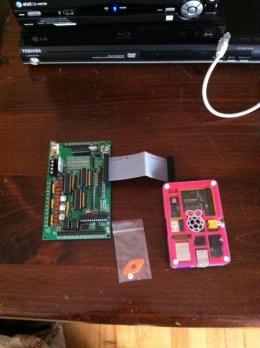
I spent some time setting up the Gertboard. This should make an interesting expansion to the home media center.

Here we can see the board under construction:

Gertboard

Gertboard

And here it is setup ready to be plugged into the RPi.

Setting up the Gertboard

Setting up the Gertboard

My next task will to find a good case for the Gertboard or to use the 3D printer to create one.


Raspberry Pi powered TV and dd-wrt router configuration

Introduction

Yesterday the snow hit so I decided to try to knock off some projects that had been on the back-burner.  Two of these were related to one another, the first being setting up my spare wireless router as a client bridge and the second setting up a Raspberry Pi with raspbmc.

Completing these two projects would allow me to create a Media Center for television and music.

Wireless router – client bridged mode

I had spent several days deciding  whether to use the wireless router I had spare to create a second network at home (not connected to the Internet), or to use it in client bridged mode.

In the end I opted for client bridged mode. The wireless router has a number of Ethernet ports located on it and would be perfect to place next to my TV as this is nowhere near my existing Ethernet switch. With this in place I could then run a short Ethernet cable from my Raspberry Pi into the wireless router and then stream TV over the wireless connection back through the Ethernet connection to the RPi and then over HDMI to the TV.

This image from the dd-wrt website shows an example of a network setup using two wireless routers one in client bridged mode:

Client_Bridge.jpg

Client Bridge example from dd-wrt.com

Setting up the wireless router was fairly straight forward. I used a Cisco Linksys E4200 router and installed the dd-wrt software onto this.

Linksys E4200

Linksys E4200

You can check your wireless router to see if it is supported at the following link:

http://www.dd-wrt.com/site/support/router-database

Once you have found your router download the firmware and follow the instructions on the dd-wrt site. There are a number of warnings on there to help you avoid ‘bricking’ (screwing up the router so it as much use as a brick) your router.

I would recommend following these as it will cause you less pain in the long run.

Once you have the router setup, follow these steps to set up the router in client bridged mode:

http://www.dd-wrt.com/wiki/index.php/Client_Bridged

If everything goes well you will now have a second wireless router connected to your primary wireless router and can then use it with the Raspberry Pi.

Raspbmc

Raspbmc is a version of the Debian Linux distro specially compiled for the Raspberry Pi to turn your Pi into a XBMC media center.

Installing it is fairly straight forward. Format  an SD card and then follow the steps located here depending on what machine you are using to format the card.

Once you have the SD card ready to go you can hook up your RPi to the wireless router, TV and power and get things started.
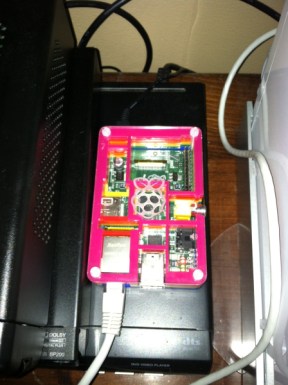
Raspberry Pi

Raspberry Pi

Note: If you have problems with the HDMI cable not displaying a picture, try the steps at this link:

http://elinux.org/R-Pi_Troubleshooting#Red_power_LED_is_on.2C_green_LED_does_not_flash.2C_nothing_on_display

When the Pi boots up it will run through the Raspbmc installation process.

Raspbmc splash screen after installing

Raspbmc splash screen after installing

Once the installation is complete you will now have the XMBC media center ready to start using.

Raspbmc

Raspbmc

Accessing the IP# of your Raspberry Pi via a web browser on port 80 will give you access to the ‘remote control’

e.g.

http://192.168.1.80:80

From here you can navigate through the menus on your TV and access content.

A wide variety of content is available on Raspbmc ranging from BBC iPlayer through to Hulu.
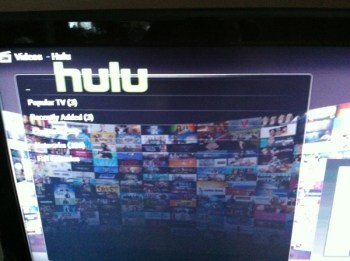
Hulu

Hulu

You can find instructions on installing the various TV networks software from the UK, US, Canada, France etc. at these following links:

General plugins:

http://wiki.xbmc.org/index.php?title=Unofficial_add-on_repositories

UK TV specific:

http://djb31st.co.uk/blog/catch-up-tv-on-raspberry-pi-raspbmc-bbc-iplayer/

Some content will not work in your area due to restrictions, for example BBC iPlayer TV content is not available outside of an UK IP address range (however radio is).

Tunlr.net seems to be a popular choice for circumnavigating this – Disclaimer: I’m not sure what the legalities of this are so you use these services at your own risk, if you don’t know it is probably best to avoid it.

Conclusion

So there we have it, a simple XMBC media center running on your Raspberry Pi that you can use to stream TV, radio and other media from.

You can read more about XMBC’s features and quick start guide at the following URL:

http://wiki.xbmc.org/index.php?title=XBMC_Quick_Start_Guide

I have  Gertboard ready to build for this Pi as well, so I will be looking at what I can use this for in my media center.

Enjoy!