Punching cable Part 1 – Patch panel, cables, switches

Introduction

The other weekend I got the opportunity to practice my cable punching skills and learn a little more about the wiring behind networks and phone systems. In this post I’ll briefly give a quick overview of a project I had the chance to work on and part 2 will look at how this can translate into the home environment.

Part 2 will also look at how these home applications can be used with the intelligent heating system I am building.

Punching cable

My wife’s family business is currently going through the process of building a new office, and as a result of this there is a substantial amount of phone and network cabling that is required in order to support the staff. Along with one of the employees I spent a weekend hooking up the cables the electricians had run from the network and phone sockets to the patch boards in the phone room.
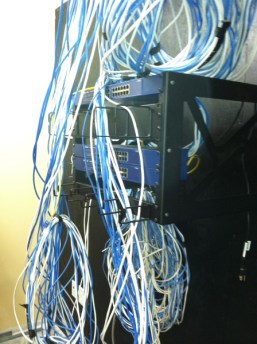
Cables!

Cables!

As you can see in the photo above there was a substantial amount of work to be done.

In total we had a trunk cable with 50 pair leading from the PBX to a patch board, 48 cables running from phone sockets (these are the white cables) to the same patch board as the trunk and another 48 Cat-5 cables (the blue) which will be used for ethernet.

Our first job was to take the loose end of the Cat-5 and punch this into the patch panel.
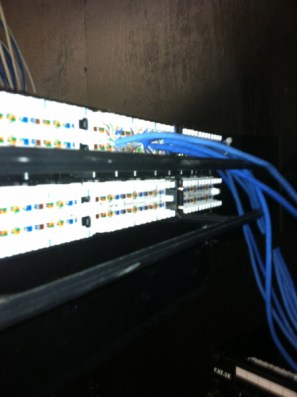
Patch board

Patch board

Patch panels are relatively cheap and can be picked up at Home Depot for example. For most home projects a 12 port patch panel should do the trick, and only set you back around $30

In order to attach the cable you will need a punch down cable installation tool.

TRIPPLITE TrippLite 110/66 Punch Down Cable Installation Kit

Dell – TRIPPLITE TrippLite 110/66 Punch Down Cable Installation Kit

These can be picked up online, or at most good stores that stock electronic/electrical products.

For this project we were following the B standard (T568B) of Cat-5 termination. There are two standards you can following, T568A and T568B, Wikipedia provides a more in-depth look at the differences.

The process of punching the cable itself for the B standard is relatively straight forward.

You simply match up the cable pair by color with the schematic on the back of the panel and then punch the cable into place using the tool shown above.

Once the cable was punched into place, the next task was to test our work to ensure the cable was sending a signal from the wall socket to the patch panel.
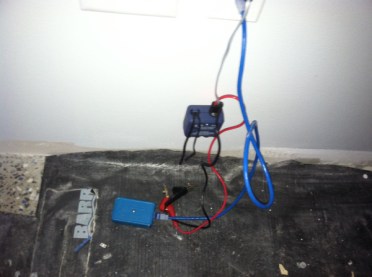
Testing the cable

Testing the cable

The photo above shows both the phone line toner and the network line tester. Both of these devices work in a similar manner. You hook one end up to the wall socket, and then in the case of the network tester, plug it into the patch board, and in the case of the toner, hold the sensor tip over the phone line on the patch board.

When you hit the test button on the network tester you should see all the light go green to indicate that the connection is good. With the toner, when you hold the sensor tip over the connected phone line on the patch board you’ll hear a sound that indicates you have a signal.

You can see some example of these tool here.

We repeated the above process of punching and testing until the 48 phone lines, trunk cable and 48 Cat-5 cables were complete.

You can see the finished work below on the phone patch board with the phone lines and the Trunk hooked up:
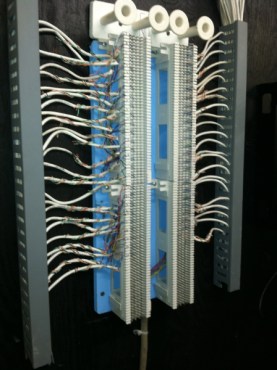
Phone patch board

Phone patch board

And here is the completed job, ready for the switches to be attached to the network patch board.
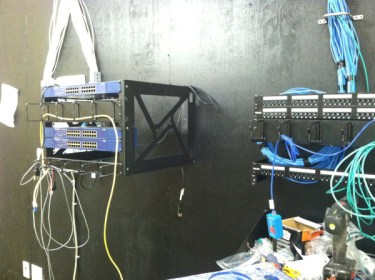
Punching cable complete

Punching cable complete

Conclusion

The above process has given me a good overview of how to set up cables and get them in punched in ready to use. As with most things in electronics, practice makes perfect. Once you get the hang of punching cable it is relatively easy. It will also give you the ability to cable Cat-5 in your own home taking some of the load of your Wi-Fi connection if you have hardware that needs a good solid, strong connection.

In Part 2 we will look at the home application of installing a network switch and implementing a patchboard.

Raspberry PI setup

A quick guide to RPI setup

Below is a quick guide to how I set up my Raspberry PI.

As an introductory note. It took several attempts to get the Raspberry PI (RPI) to work, the steps below are the ones that ended up working for me, but may not work for you. These steps were performed on a MacBook pro running Lion and using a SanDisk Ultra II 4 GB SD card.

1.) I downloaded the Debian Squeeze version of Linux from here: http://www.raspberrypi.org/downloads

2.) I grabbed a copy of RasPiWrite for Mac from here: http://exaviorn.com/raspiwrite/

3.) Next I put my SD card into my MacBook and removed the existing partition.

SD Card

SD Card

4.) I ran the RasPiWrite script. This requires python to be installed on your machine.  You may want to follow along with the instructions on the website as well.

5.) Once done I plugged in the spare keyboard I had into the Raspberry PI and using a USB to wall power supply, plugged this into the RPI.

6.) I plugged the HDMI cable from my TV into the Raspberry PI. Note – this did not work, I got a flickering green + red light.

7.) I switched over from the HDMI  cable to the yellow comp cable – this worked.

The RPI booted up and presented me with the login screen. The login credentials can be found on the downloads page of the RPI site, next to the OS version you have selected to use.

My RPI is now ready for me to setup network support and install an HTSQL server on it.

I’ll be going into more details on HTSQL in my next post.

Thoughts on – “nest – The programmable home thermostat”

For those of you interested in thermostats, you may be interested to see the nest -Learning Thermostat. I’d not heard of these devices until the COO at my work place Dave told me about them over lunch and sent me the link.

The nest is an intelligent home thermostat device that is capable of all sorts of cool things, such as showing you how long it will take the house to warm up, how much energy it uses and figuring out when you are gone for the day.

All of these features are of course very useful and the nest also aims to help cut your electricity bills down, a noble goal indeed.

Each unit clocks in at $249 a piece, and then if you want to have the nest guys install it, that’s a little more on top. This isn’t actually a bad price at all for all the cool functionality, and the really very nice design of the thermostat itself (I believe some guys from Apple are behind the company).

However at $249 per unit the price could soon mount up if you have a lot of baseboard heaters. Buy four thermostats and you have already spent close to $1000 for example. I am hoping my home-brew system will not cost anywhere in this range. The nest will give me a good bench-mark to work against, can I get the components and put them together for less than $250?

The nest has given me some good ideas though! Would it be possible to have a decent looking UI on the thermostat, rather than a plain old LCD?

After doing some digging around online I’ve found some great TFT touch screen Shields for Arduino. You can see an example of one here.

The http://adafruit.com/ website also has a number of other touch-screen shields, so there are plenty of options on this front. This would also allow me to create a very rich UI with interesting ways of representing the temperature in the room.

I’ll do some more research on the TFT options, however I believe this will replace the LCD component on my earlier list .

In conclusion – the nest is a great piece of kit from the looks of it. For those not inclined to build their own system and with the cash to spare, this could be a great addition to your home heating system.

Hardware – what we currently have

This morning I have made a quick list of the hardware I currently have or have access to. Looking at this I can then decide which task I want to tackle first and what I need to buy.

We currently have:

  1. A collection of old thermostats
  2. Some old baseboard heaters
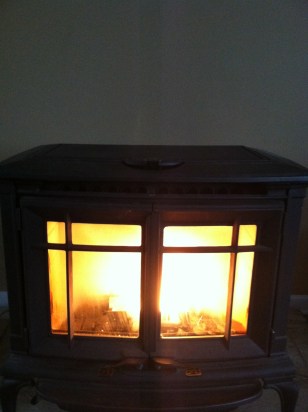
  3. A now working pellet stove
  4. A collection of computers and parts
  5. An A/C Unit with a fan and ducts
  6. Various computers, parts, wi-fi and an iphone
  7. Access to a 3D printer

Pellet stove/Baseboard heaters

The pellet stove works great so we will be keeping this. It also has the option of being controlled via thermostat so we could have the system turn it on/off as needed. I’ll be digging through the user manual to see if there is also some way to interface with the stove to grab error codes (for example if the stove runs out of pellets). If not since the error codes are displayed on several LED’s there might be some way of scraping this data via a web-cam and using it.

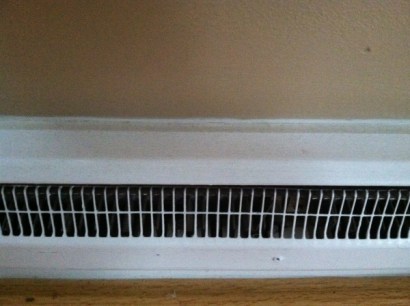
The baseboard heaters are very inefficient, however these will have to stay for the moment. Once I have built the system to control the thermostats I am going to look at what other options we have for heat/electricity sources, however this isn’t an immediate priority.

A/C Unit

The A/C unit, fan and duct work can be leveraged to pull heat through the house and warm other rooms. I want to be able to control this via the system as well. It currently uses a Honeywell thermostat and controller which is programmable. I’ll be looking through the manual on this  to see if it can be interfaced with, if not I’ll consider replacing the controller with something that can.

This however can wait for the moment as it works pretty well and since we don’t have central heat isn’t of immediate concern.

Thermostats

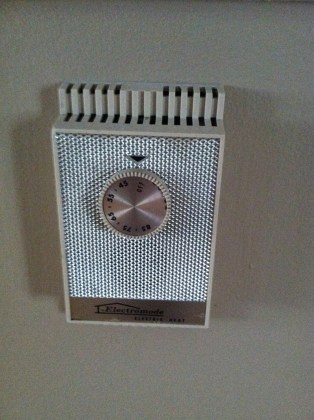
The thermostats are old, crappy and some look like they have seen better days. They are also a mash of different brands and don’t look very nice. Most importantly they can’t be controlled remotely.

Old thermostat

Old thermostat

Due to their placement they are also susceptible to being knocked into and turned on by accident. A few also have dials that don’t look as if they turn off properly. If you get to work and realize you left one switched on you have no way of turning it off until you get home.

We will be getting rid of all of these.

Computer parts/3D printer

I also have a collection of computer parts and several machines running a range of O/S including Mac Lion, Ubuntu, FreeBSD, XP and Windows 7. Some of this will be useful, however for the device that controls the heating system I want something small and compact, that can be mounted on a wall. We also have internet access and wi-fi of course.

Finally I have access to a 3D printer via a co-operative at my work (more on this in a separate post). I’ll be able to use this to print out cases for thermostats I custom build and any plastic parts I might need.

Summary

My first task is going to be to replace the thermostats. I’ll need to find out exactly how to build one and the parts that are needed.I’ll also need to become familiar with how to wire them up. Once they are working I can then start looking at the controller.

Programming Your Home – Mike Riley

Programming your home

I preordered “Programming Your Home” by Mike Riley and it just arrived. I’ll be posting a review of the book once I have the opportunity to read it.

The book has a selection of exercises and projects to introduce you to home automation, Arduino and related technologies.

You can check it out on Amazon here.


An overview of the system

A general overview of the system

Having decided to go ahead and build a home-brew system the first step was to decide exactly what I was hoping to achieve beyond the high-level term optimizing. I’ve made a list of the tasks I would like the system to perform and some of the outcomes I want the system to achieve:

  1. It has to be cheap to build. As well as the obvious saving money outcome, I am hoping to demonstrate that anyone can build their own system and it will cost less than spending several hundred dollars per component on off the shelf kit. I am also hoping where commercial equipment does need to be bought e.g. a second pellet stove, the devices we choose are the best value for money (more on this later)
  2. It needs to dump data somewhere I can retrieve it. I want to be able to review the temperature data and re-use it within the system. Having an average temperature for August and one for February and being able to compare these would be useful for example.
  3. It needs to be self optimizing to a point. Using various algorithms and the above stored data, the system needs to be able to switch devices in the house on/off based upon a set of criteria such as: cost, performance, temperature, and in the case of a pellet stove, whether the stove is empty or not (for example if we are out and the stove runs out of pellets, what does the system use as a fail over?).
  4. The system should be controlled via some sort of app that can be run on a PC, Mac and Linux/Unix device. This should include both mobile/tablet and regular devices. For example If I want to up the temperature in my home office whilst I’m at the supermarket, ready for when I get home, I should be able to do this via my iphone.
  5. The device should be networkable, this can include both wi-fi and wired options.
  6. The system should be safe and secure. Both from software perspective i.e. adequate network security and from a hardware safety perspective i.e. the home-brew thermostat isn’t going to fall off the wall.
  7. It should save money on our electricity bill.
  8. It should be extensible. If I wish to zone the system so that it draws its power from say a solar source, some other renewable or from a generator if the power goes out, switching over should be easy. If I wish to add more thermostats, pellets stoves, A/C or software apps this should be easy.

This allows me to break down the development stage into separate components and evaluate what technology I currently have, and what I will need to build and code the system. It also provides a list of criteria on what the system should achieve, so I can check along the way that each stage of development is hitting a goal.

My next step is to take stock of what I currently have and what I am going to need on both the hardware and software front.

Welcome to Intelligent Heating – a journey through home-brew heating

Introduction

This blog will detail my journey through building an intelligent home heating system. Using free and open source software such as: FreeBSD, Python, PostgreSQL and HTSQL, open source hardware such as: Arduino and Raspberry Pi and  a host of other cool additions (including components printed on a MakerBot 3D printer) I am going to overhaul my heating system and blog the progress along the way.

Some background

We currently heat most of our house using a pellet stove. A pellet stove basically burns compressed wood or biomass pellets (in Italy sometimes olive pits) to create a source of heating for your home. A couple of tons of pellets will last us all winter and normally costs between $400 – $600 depending on type and supplier.

img_0202

In February 2012 our pellet stove stopped working. When we spotted a problem with it, we consulted the user manual, took the side off and cleaned the whole stove out including the fan, but this didn’t have any effect, so we called out the repair guy. Unfortunately it was going to take a couple of weeks until he could get to us so we had to fall back on the old baseboard heaters that came fitted when we bought the house.

Old base board heaters

Old base board heaters

Throughout the house we had the thermostats set on the baseboard heaters for around 60 degrees F which supplemented the heat from the pellet stove. After receiving our first winter electricity bill, we decided to cut down on the use of the heaters to keep costs low. However once the pellet stove broke we had little choice but to use the baseboard heaters to keep the house warm, and we soon found out this had costs us a small fortune.

These things are possibly one of the most inefficient means of heating a house. This we discovered after receiving a $600 electricity bill from the UI company for a single month… ouch.

For those of you not aware, Connecticut has some of the highest electricity rates in the country. The 2008 OLR report placed CT in the number 2 spot when it comes to electricity costs. Coupled with the tropical storm Irene last year and the freak October snow-storm CT residents were not only dealing with high kWh costs but also periods of blackouts running into the days due to the damage caused by falling trees.

The combined cost of electricity and lack of service at points led me to investigate, how could we power and monitor our heating systems at minimal cost whilst optimizing our electricity usage and room temperature?

I hope to answer the above questions with this blog, and if lucky be able to demonstrate a cheap and cool way of doing it.